
Drop a folder. Sortio renames every file and files it where it belongs.
Reads each file's contents, names it like YYYYMMDD - Vendor - $Amount or LastName, FirstName, and routes it to the right client, matter, or property folder. Creates the folder if it's missing.
3M+ files organized for lawyers, realtors, and consultants. A weekend backlog is an afternoon, not a quarter.
Free to start. No credit card. Preview every move and undo any change.
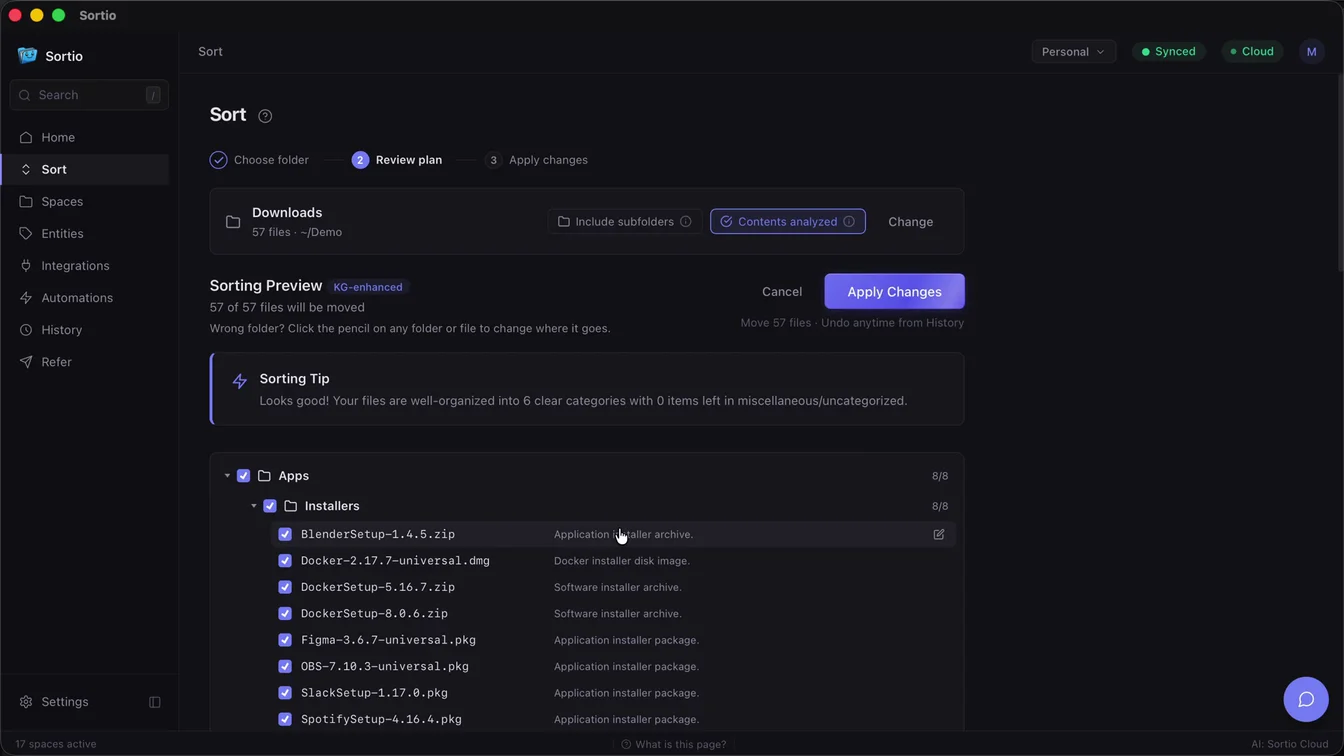
Watch a messy folder fix itself.
This is what one Sortio pass looks like: it reads each file, gives it a real name, and files it where it belongs.
Downloads
0 of 8 processed- IMG_2437.jpg reading
- Scan0001.pdf
- invoice (3).pdf
- doc_final_FINAL2.docx
- Screenshot 2024-11-02 at 9.14.31 AM.png
- statement(1).pdf
- untitled.xlsx
- WA0012.jpeg
Organized
- Documents
- Career
- Resume - Jordan Avery - 2024.docx
- Finance
- 2024 Household Budget.xlsx
- 2024-10-31 - Chase Statement.pdf
- Home
- 2024-03-14 - Lease - 44 Elm St.pdf
- Insurance
- 2024-11-02 - Geico - $128.40.pdf
- Travel
- 2024-11-02 - Flight Confirmation - UA1187.png
- Photos
- 2024
- 2024-06-12 - Kauai Beach.jpg
- 2024-07-19 - Nonna's 80th.jpeg
Example run. In the app, Sortio reads your actual files and you approve the plan before anything moves.
Built for the way you actually file
Lawyers, realtors, bookkeepers, consultants, project managers, and home archivists already trust Sortio with their pro and personal files.
Solo Lawyer or Attorney
Per client, per matter, per county filing across a backlog of intake docs and exhibits.
"Rename from content and route each doc to the right client matter folder, create a new folder if the client is unknown."
Real Estate Agent
Hundreds of MLS photos, drone shots, and transaction docs per property, all due yesterday.
"Sort these 460 files into folders by property address (e.g. 1127 S Cornell Terrace) and split photos, drone, and transaction docs."
SMB Back Office or Bookkeeper
Payroll runs, vendor invoices, and multi-year archives piling up on a shared OneDrive.
"Group by vendor and year, separate payroll from invoices, and keep the existing client subfolders intact."
Solo Consultant or Founder
Multi-client deliverables, or multiple businesses, sharing one inbox and one Downloads folder.
"Route each file to the right client (or business entity) based on the content, and rename grant deliverables by program name."
Engineering or AEC Project Manager
CAD drawings, change requests, BOQs, and meeting minutes scattered across project phases.
"Organize by project phase and drawing discipline, separate CAD revisions, BOQs, and MOMs into their own folders."
Personal Archivist
Decades of family docs, tax returns, and photo libraries waiting to be filed properly.
"Sort family photos by year and event, and route tax and house-build documents into the right yearly folders."
What People Are Saying
Verified public reviews from the App Store and Reddit.
"I end up doing a lot of design work to support my business, so I have tons of templates, graphics, fonts, documents, e-books, etc.- dozens of file types that I download to support the work. Sortio just whips through them. As for backups, I have it save things into folders by date so I can find items more easily."
u/krts
Comment on r/macapps"500+ screenshots with random ids as names put in folders grouped to 5 categories each with 3-4 subfolders. Bravisimo e grazie!"
SirWill3
Verified App Store review"Sick. I was tinkering with some other self-hosted solutions but your's seems the most user friendly--and slick. Congrats on your business."
u/ZealousidealPage5309
Comment on r/datacurator"This is fantastic, I have been following Sortio since the beginning and its so cool to see how adaptive the developer is to feedback. The smart folders is a game changer"
SaraLin9022
Verified App Store review"I'm in. I struggle with file organization, and the renaming sealed the deal."
u/TandyColorComputer3
Comment on r/macapps"This looks awesome! I'm so terrible about organizing files and everything just ends up in Downloads or Documents."
u/JokeGold5455
Comment on r/macapps"Sortio all the way. It uses AI and can organize files in a very, very complex way and it's in continuous development. The devs are always listening the feedback from the community and let the users vote to for the new features to prioritize."
u/Alvyx2020
Comment on r/macapps"This awesome. Even better than the sparkle app."
u/appscripts_fan
Comment on r/ProductivityApps"Thank you for the thoughtful response. I think it's really impressive what you have so far! Well done!"
u/AwkwardSmirk
Comment on r/ProductivityApps"This is fantastic. Should definitely be a standard utility."
u/Round_Tomorrow5564
Comment on r/SideProject"Jusque là, je suis vraiment très content de Sortio. Si je ne lui en demande pas de trop, c'est parfait ! Il m'a principalement aidé à faire du classement (trier, renommer) pour un usage pro/perso, et le résultat est impeccable 👌 Bravo 👏 Merci beaucoup !"
u/infodulo
Comment on r/macapps"I liked the concept of this app, really it is so useful"
Mahmoud799
Verified App Store review"Just bought a copy and it seems super useful!"
u/CaptainK17
Comment on r/macapps"Thanks for the quick reply! I just purchased a copy, cheers!"
u/csts
Comment on r/macapps"Awesome work!"
u/Successful-Archer180
Comment on r/macapps"nice tool, 🔥🔥"
u/crackdepirate
Comment on r/SideProject"Shut up and take my money!"
u/jetrois
Comment on r/macapps"Purchased! 🏆"
u/philliphandsome
Comment on r/macapps"Thanks just bought it and it looks great."
u/RisksvsBenefits
Comment on r/macapps"Perfect!"
u/ADHDK
Comment on r/macapps"looking good"
u/patrick_zhong
Comment on r/ProductivityAppsFor personal and professional use
From organizing family photos to managing client projects
Fits into your existing setup
Sortio works directly with the folders you already have. Whether your files live on your desktop or are synced from the cloud, organizing them is one prompt away.
Sort folders synced from
If the folder shows up in File Explorer or Finder, Sortio can sort it. No integration setup required, on Windows or Mac.
Native integrations
Clio
API integrationUpload sorted documents straight to the right matter. Two-stage matter matching with confidence scoring.
Listed in the Clio App DirectoryTell us what you use. The integrations we build next come from what paying customers ask for.
Product names are trademarks of their respective owners. Cloud storage providers are listed for compatibility only and their inclusion does not imply endorsement or affiliation. Clio is a native integration built on Clio's official API and published in the Clio App Directory.
Your file contents stay on your machine unless you turn on a content feature
Sortio is designed for legal, financial, healthcare-adjacent, and grant-administration work where client documents and regulated data cannot leave your control.
Your files stay local. You choose the AI.
File indexing, content extraction, and rule-based sorting all run on your Mac. To plan an AI sort, Sortio sends your filenames and folder paths to a provider you choose, which is our cloud (OpenAI) by default. Your file contents stay on your device unless you turn on a content-based feature. Prefer to send nothing at all? Switch to local mode (Ollama) or your own API key.
Local Processing Options
Files are indexed and read on your Mac, and rule-based sorting runs locally. AI sorting sends your filenames and metadata to the provider you choose (our cloud by default, or your own key); file contents are uploaded only if you enable a content-based feature, and never in local mode. Learn more
Bring Your Own Model
Use Ollama for fully local AI, or plug in your own OpenAI, Anthropic, or other API-compatible key. When you BYOK, file content flows to your provider under your account, not ours. Learn more
30-Day Cloud Retention
If you opt into Sortio's hosted AI, content is purged on a 30-day rolling basis. We keep aggregated usage stats so we can bill and improve the product, never your documents. Learn more
Audit-Logged Moves
Every file move, rename, and rule application is logged locally with a timestamp and source/destination path. Export the journal for compliance reviews, discovery, or your own records. Learn more
Sortio is built for professionals handling client documents, financial records, and regulated data. By default, AI sorting uses our cloud (OpenAI) and sees your filenames and metadata; local AI (Ollama) keeps everything on your machine. If your workflow touches privileged, PHI-adjacent, or grant-administration files, configure Sortio for local-only mode so your data never crosses your network boundary.
AI file management designed for productivity
Sortio is an AI file organizer that sorts, renames, and routes documents, photos, and downloads with a prompt, then keeps doing it on autopilot.
AI Rule Builder
Describe how you want files sorted in plain English, and Sortio builds the rules for you. Once a rule is set, it keeps working on every new file, no technical knowledge required.
Smart Folders
Set a folder once. Sortio routes every new file to the right place automatically, by client, project, or category, so your workspace stays organized without you thinking about it.
Reads Your Documents
Sortio opens your files and extracts the important details: people, companies, dates, dollar amounts, document types. Every file you add makes your library smarter.
Search by Meaning, Not Filename
Stop guessing filenames. Type 'tax return 2024' or 'invoice from Acme Corp' and find it instantly, even if the file is named IMG_4032.pdf.
Intelligent Sorting
Our AI-powered system organizes your files according to your instructions. Sort by file name, metadata, or content with a simple toggle, and preview the plan before anything moves.
Know What's in Your Files
See every person, company, and dollar amount across all your documents at a glance. Perfect for tax prep, compliance checks, or just knowing where things are.
Rule Discovery
Browse and import community-created rulepacks tailored for your profession. Lawyers, students, designers, and more can get started instantly with pre-built sorting solutions.
Works in 7 Languages
The full app ships in English, Chinese (Simplified and Traditional), Korean, German, Spanish, and French. Sortio also reads and sorts documents across languages, so bilingual archives are no problem.
Intelligent File Renaming
Automatically rename files based on content, context, or pattern with our AI-powered renaming tool. Toggle this feature on or off to maintain complete control.
Smart Suggestions
Receive intelligent recommendations for file organization based on your past sorting patterns and content analysis.
Secure Activity Logging
Track every file movement with detailed logs showing what happened to each file, when it moved, and where it went. All logs are stored securely.
Offline Mode
Enable offline mode to ensure your data never leaves your device, providing complete privacy and control over your file organization.
Most file organizers move files around. Sortio actually reads them.
Other tools
- Look at file names and dates
- Move files into folders
- You still can't find anything
Sortio
- Reads document contents
- Extracts people, companies, dates, amounts
- You search by meaning and find it instantly
The result
- Sort smarter because Sortio understands context
- Find any document in seconds
- Spot sensitive files before they become a problem
Why not just use ChatGPT, or keep doing it by hand?
ChatGPT can suggest folder names, but it cannot touch your files: no way to safely move 3,000 real documents, no preview, no undo. Doing it by hand costs hours every week. Sortio reads the files, shows you the full plan before anything moves, applies it in one pass, and can undo the whole batch.
Comparing against Hazel, Sparkle, or FileJuggler? See the side-by-sideSimple, Flexible Pricing
Start free, upgrade when you need more. Plans for individuals, teams, and enterprises.
Pro is built for...
- You sort 100+ files at a time, regularly
- You work with client, matter, project, or property folders
- You have years of unfiled documents you keep meaning to deal with
- You want Spaces watching Downloads or a Dropbox archive 24/7
- You need files renamed from content, not just moved
If you only need a one-time cleanup...
- Sorting 50 family photos or a single tax folder? Free is enough.
- One-time household decluttering? Start Free, upgrade only if you hit the limit.
Free
Free AI trial included
- One-time AI trial allowance, enough to try Sortio on a real folder
- Rule-based sorting: free and unlimited
- Up to 5 rules and 3 Spaces
- Community rulepacks
- Preview before applying
- Sort history & undo
- Local LLM / BYOK
- Import rulepacks
- Watch folders
- On-change automations
Pro
About $8.25/mo. Save 45% vs $14.99/mo billed monthly
For power users who need more
- Monthly AI allowance sized for heavy use
- AI sort: up to 5,000 files / run
- Unlimited via automations
- Bring your own AI key: unmetered, no allowance used
- Usage shown as a simple percentage in Settings
- Unlimited Spaces & automations
- Knowledge Graph indexing
- Auto-sort on file change
- Unlimited file renaming
- Import/export rule packs
- Commercial license
- Email support (48h)
Team
2 months free vs $29/seat/mo billed monthly
Shared workflows for teams
- Everything in Pro
- Double the Pro AI allowance per seat, pooled across your team
- Add seats to grow your shared allowance
- Team workspaces
- Shared automations
- Admin console & seats
- Centralized LLM policy
- Priority support (24h)
How buying works
- 1
Download the app free
Sortio runs on macOS, Windows, and Linux. No credit card required.
- 2
Sign in with your email
We email you a magic sign-in link, no password to manage. If it does not arrive, check spam or your company filter.
- 3
Upgrade inside the app
Choose Pro in the app and a secure Stripe checkout opens in your browser. Team plans check out right here on the web.
Compatible with macOS 11.0+, Windows 10/11, and Linux
*Prices may vary by location. All plans encrypt data in transit and at rest, with local-only (Ollama) and bring-your-own-key options available on every plan.
Subscriptions renew automatically at the end of each billing period until you cancel. Monthly plans renew monthly; annual plans renew yearly (Pro Annual is billed at $99 per year, Team Annual at $290 per seat per year). At $14.99 per month, the annual cost on a monthly plan is $179.88. You can cancel anytime in the app at Settings, Subscription or through the Stripe Customer Portal. See our Refund Policy and Terms.
Built With and For Our Community
Sortio is shaped by our users. Your feedback directly influences our roadmap, ensuring the features you need the most get prioritized.
Feature Leaderboard
Scheduled automations
Run sorting rules on a timer, not just when files change
Notification system
Alerts when automations process files or hit an error, so unattended runs stay visible
Hide the app icon in the Dock
Run Sortio from the menu bar only, with no Dock icon
Real estate transaction integrations
File closing docs into dotloop and property-management tools
Progress view for very large sorts
Live per-file progress when sorting tens of thousands of files
Join Our Community
Become part of our growing community of organization enthusiasts. Share ideas, vote on features, and help shape the future of Sortio.
Vote on FeaturesFrequently Asked Questions
Everything you need to know about Sortio. Can't find the answer you're looking for?Contact our team
Still have questions?
Our support team is just a click away
Guides for your workflow
Hand-picked playbooks for lawyers, freelancers, small business teams, and power users who want their files to organize themselves.
Organize Legal Case Files
Structure legal documents by case, client, and document type for law firms.
How to Organize Client Files as a Freelancer
A complete guide to organizing client files as a freelancer with folder structure templates, naming conventions, and archiving strategies.
File Organization for Small Businesses: Templates and Best Practices
A practical guide to building a scalable file organization system for your small business with department-based folder structures and automation.
How to Organize 10,000+ Files Without Losing Your Mind
A practical guide to tackling massive file collections with batch processing strategies, phased approaches, and AI-powered tools.
Organize Tax Documents
Keep tax-related documents organized year-round for stress-free filing.
Hazel Alternatives for Mac (2026)
Sortio, Hazel, Sparkle, FileJuggler, DropIt, and Folder Tidy side by side: honest per-tool verdicts, where Hazel still wins, and where the AI-native options pull ahead.
We'd love to hear from you
Questions, suggestions, or just want to say hello? We're here to help.
Contact Us
Use the form for quick replies
Response Time
We typically respond within 24 hours
Ready to clear the backlog?
Drop a folder and watch Sortio name and file everything in it.
Download Sortio FreeFree to start. No credit card. Preview every move and undo any change.