
Drop a folder. Sortio renames every file and files it where it belongs.
Reads each file's contents, names it like YYYYMMDD - Vendor - $Amount or LastName, FirstName, and routes it to the right client, matter, or property folder. Creates the folder if it's missing.
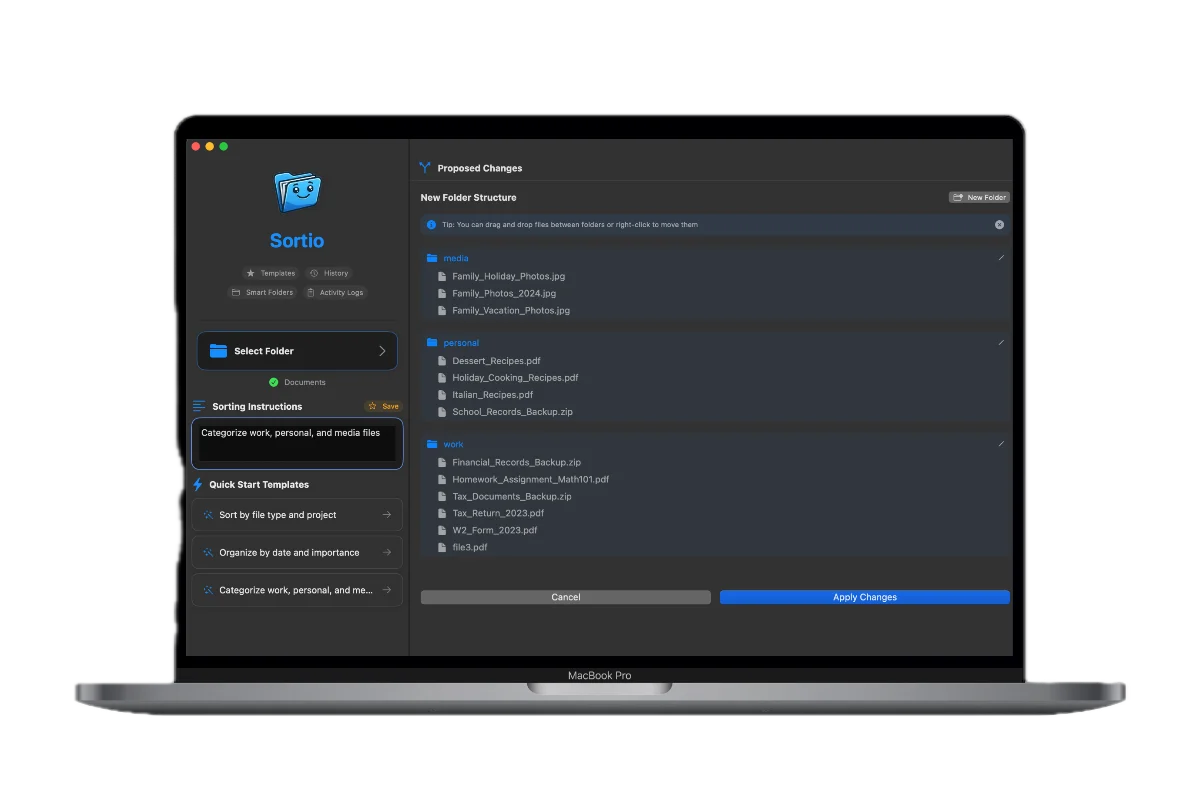
Experience the Magic
See how Sortio transforms chaos into order with a simple prompt
Files
AI Organization
Built for the way you actually file
Lawyers, realtors, bookkeepers, consultants, project managers, and home archivists already trust Sortio with their pro and personal files.
Solo Lawyer or Attorney
Per client, per matter, per county filing across a backlog of intake docs and exhibits.
"Rename from content and route each doc to the right client matter folder, create a new folder if the client is unknown."
Real Estate Agent
Hundreds of MLS photos, drone shots, and transaction docs per property, all due yesterday.
"Sort these 460 files into folders by property address (e.g. 1127 S Cornell Terrace) and split photos, drone, and transaction docs."
SMB Back Office or Bookkeeper
Payroll runs, vendor invoices, and multi-year archives piling up on a shared OneDrive.
"Group by vendor and year, separate payroll from invoices, and keep the existing client subfolders intact."
Solo Consultant or Founder
Multi-client deliverables, or multiple businesses, sharing one inbox and one Downloads folder.
"Route each file to the right client (or business entity) based on the content, and rename grant deliverables by program name."
Engineering or AEC Project Manager
CAD drawings, change requests, BOQs, and meeting minutes scattered across project phases.
"Organize by project phase and drawing discipline, separate CAD revisions, BOQs, and MOMs into their own folders."
Personal Archivist
Decades of family docs, tax returns, and photo libraries waiting to be filed properly.
"Sort family photos by year and event, and route tax and house-build documents into the right yearly folders."
What People Are Saying
How real Sortio Pro customers describe their workflows. Roles only, paraphrased with permission pending.
"I run per-client filing for a court-appointed practice. Sortio reads each document, drops it into the right client folder, and creates a new one when the client is new. The county tag at the end of the filename is the part I did not know I needed."
Solo criminal defense attorney
Sortio Pro customer
"Three years of payroll PDFs and vendor invoices sat on our shared OneDrive in folders with typos and near-duplicates. I pointed Sortio at a 3,748 file batch and it canonicalized the folder names and routed everything by vendor and date. That was a quarter of bookkeeping work in an afternoon."
Bookkeeper at a construction and trucking SMB
Sortio Pro customer
"Our archive is a 7,000 file telecom project with bilingual filenames in Arabic and English. Sortio is the only tool that read the content and grouped drawings, change requests, and meeting minutes the way an engineer would. Saved weeks on a handover."
Engineering project manager
Sortio Pro customer
"Every listing generates 200 plus photos and a stack of transaction docs. I tell Sortio the property address and it files everything under that address, splits photos from contracts, and renames the scanned disclosures so I can actually search them."
Residential real estate agent
Sortio Pro customer
"I write CDFI grant applications for credit unions. Each filing has hundreds of supporting docs across multiple credit unions. Sortio routes them into the right institution folder and renames each file with YYYYMMDD and the source so my audit trail is clean."
Grants consultant for credit unions
Sortio Pro customer
"Decades of board packets, operations records, and scanned correspondence for a special district. 142 sorts in, Sortio has filed material I had no realistic plan for. The recursive scan and the rename to readable filenames did most of the work."
Operations manager at a public utility district
Sortio Pro customer
"I run a Dropbox archive folder named zu archivieren. Sortio watches it, extracts entities, and renames every scanned PDF as Datum then Absender then Betreff. Nearly 3,000 documents indexed without me touching them."
SMB owner archiving a multi-year document folder
Sortio Pro customer
"I had wedding photos sprawled across four folders the photographer dropped, with duplicates everywhere. Sortio deduped the near-identical shots, separated HEIC and MOV from JPG, and gave me one clean gallery I can actually share with family."
Homeowner consolidating wedding and family galleries
Sortio Pro customer
"I run a few businesses out of one machine. A Rule Builder rule moves anything mentioning the holding company into its own folder, and the gelato retail invoices route separately. Filing is finally not my job anymore."
Multi-venture founder
Sortio Pro customer
"I run per-client filing for a court-appointed practice. Sortio reads each document, drops it into the right client folder, and creates a new one when the client is new. The county tag at the end of the filename is the part I did not know I needed."
Solo criminal defense attorney
Sortio Pro customer
"Three years of payroll PDFs and vendor invoices sat on our shared OneDrive in folders with typos and near-duplicates. I pointed Sortio at a 3,748 file batch and it canonicalized the folder names and routed everything by vendor and date. That was a quarter of bookkeeping work in an afternoon."
Bookkeeper at a construction and trucking SMB
Sortio Pro customer
"Our archive is a 7,000 file telecom project with bilingual filenames in Arabic and English. Sortio is the only tool that read the content and grouped drawings, change requests, and meeting minutes the way an engineer would. Saved weeks on a handover."
Engineering project manager
Sortio Pro customer
"Every listing generates 200 plus photos and a stack of transaction docs. I tell Sortio the property address and it files everything under that address, splits photos from contracts, and renames the scanned disclosures so I can actually search them."
Residential real estate agent
Sortio Pro customer
"I write CDFI grant applications for credit unions. Each filing has hundreds of supporting docs across multiple credit unions. Sortio routes them into the right institution folder and renames each file with YYYYMMDD and the source so my audit trail is clean."
Grants consultant for credit unions
Sortio Pro customer
"Decades of board packets, operations records, and scanned correspondence for a special district. 142 sorts in, Sortio has filed material I had no realistic plan for. The recursive scan and the rename to readable filenames did most of the work."
Operations manager at a public utility district
Sortio Pro customer
"I run a Dropbox archive folder named zu archivieren. Sortio watches it, extracts entities, and renames every scanned PDF as Datum then Absender then Betreff. Nearly 3,000 documents indexed without me touching them."
SMB owner archiving a multi-year document folder
Sortio Pro customer
"I had wedding photos sprawled across four folders the photographer dropped, with duplicates everywhere. Sortio deduped the near-identical shots, separated HEIC and MOV from JPG, and gave me one clean gallery I can actually share with family."
Homeowner consolidating wedding and family galleries
Sortio Pro customer
"I run a few businesses out of one machine. A Rule Builder rule moves anything mentioning the holding company into its own folder, and the gelato retail invoices route separately. Filing is finally not my job anymore."
Multi-venture founder
Sortio Pro customer
For personal and professional use
From organizing family photos to managing client projects
Fits into your existing setup
Sortio works directly with the folders you already have. Whether your files live on your desktop or are synced from the cloud, organizing them is one prompt away.
Sort folders synced from
If the folder shows up in File Explorer or Finder, Sortio can sort it. No integration setup required, on Windows or Mac.
Native integrations
Clio
API integrationUpload sorted documents straight to the right matter. Two-stage matter matching with confidence scoring.
Tell us what you use. The integrations we build next come from what paying customers ask for.
Product names are trademarks of their respective owners. Listing here indicates compatibility only and does not imply endorsement or affiliation.
Your files never leave your machine unless you choose
Sortio is designed for legal, financial, healthcare-adjacent, and grant-administration work where client documents and regulated data cannot leave your control.
Local by default. Cloud only by choice.
File indexing, content reads, and rule-based sorting all run on your Mac. The only time content leaves your device is when you explicitly enable a cloud AI provider, and you decide which one.
Local-First by Default
Files are indexed and analyzed on your Mac. Sortio reads from disk, builds its plan locally, and never uploads file contents unless you opt into a cloud provider. Learn more
Bring Your Own Model
Use Ollama for fully local AI, or plug in your own OpenAI, Anthropic, or other API-compatible key. When you BYOK, file content flows to your provider under your account, not ours. Learn more
30-Day Cloud Retention
If you opt into Sortio's hosted AI, content is purged on a 30-day rolling basis. We keep aggregated usage stats so we can bill and improve the product, never your documents. Learn more
Audit-Logged Moves
Every file move, rename, and rule application is logged locally with a timestamp and source/destination path. Export the journal for compliance reviews, discovery, or your own records. Learn more
Sortio is built for professionals handling client documents, financial records, and regulated data. Local AI keeps sensitive content on your machine; cloud AI is opt-in and auditable. If your workflow touches privileged, PHI-adjacent, or grant-administration files, configure Sortio for local-only mode and your data never crosses your network boundary.
Designed for Productivity
Powerful tools that help you organize your digital life with ease and precision
AI Rule Builder
Describe how you want files sorted in plain English, and Sortio builds the rules for you. Once a rule is set, it keeps working on every new file, no technical knowledge required.
Smart Folders
Set a folder once. Sortio routes every new file to the right place automatically, by client, project, or category, so your workspace stays organized without you thinking about it.
Reads Your Documents
Sortio opens your files and extracts the important details: people, companies, dates, dollar amounts, document types. Every file you add makes your library smarter.
Search by Meaning, Not Filename
Stop guessing filenames. Type 'tax return 2024' or 'invoice from Acme Corp' and find it instantly, even if the file is named IMG_4032.pdf.
Intelligent Sorting
Our AI-powered system organizes your files according to your instructions. Sort by file name, metadata or content with a simple toggle, and watch the magic happen.
Know What's in Your Files
See every person, company, and dollar amount across all your documents at a glance. Perfect for tax prep, compliance checks, or just knowing where things are.
Rule Discovery
Browse and import community-created rulepacks tailored for your profession. Lawyers, students, designers, and more can get started instantly with pre-built sorting solutions.
Intelligent File Renaming
Automatically rename files based on content, context, or pattern with our AI-powered renaming tool. Toggle this feature on or off to maintain complete control.
Smart Suggestions
Receive intelligent recommendations for file organization based on your past sorting patterns and content analysis.
Secure Activity Logging
Track every file movement with detailed logs showing what happened to each file, when it moved, and where it went. All logs are stored securely.
Offline Mode
Enable offline mode to ensure your data never leaves your device, providing complete privacy and control over your file organization.
Most file organizers move files around. Sortio actually reads them.
Other tools
- Look at file names and dates
- Move files into folders
- You still can't find anything
Sortio
- Reads document contents
- Extracts people, companies, dates, amounts
- You search by meaning and find it instantly
The result
- Sort smarter because Sortio understands context
- Find any document in seconds
- Spot sensitive files before they become a problem
Built With and For Our Community
Sortio is shaped by our users. Your feedback directly influences our roadmap, ensuring the features you need the most get prioritized.
Feature Leaderboard
Semantic Searching
Locate files with natural language prompts instead of exact filenames or paths.
Cloud Storage Integration
Connect with popular cloud storage services including Google Drive, Dropbox, Box, and OneDrive to sort and organize files stored in the cloud.
Content Searching
Sort and find files based on their content rather than just metadata.
Smart Files
Intelligently tag files with metadata and attributes to enhance searchability and organization. Uses AI to extract relevant information from file contents.
Prompt Tips
Resources to help users get the most out of Sortio, including website guides and YouTube tutorials.
Join Our Community
Become part of our growing community of organization enthusiasts. Share ideas, vote on features, and help shape the future of Sortio.
Vote on FeaturesSimple, Flexible Pricing
Start free, upgrade when you need more. Plans for individuals, teams, and enterprises.
Pro is built for...
- You sort 100+ files at a time, regularly
- You work with client, matter, project, or property folders
- You have years of unfiled documents you keep meaning to deal with
- You want Spaces watching Downloads or a Dropbox archive 24/7
- You need files renamed from content, not just moved
If you only need a one-time cleanup...
- Sorting 50 family photos or a single tax folder? Free is enough.
- One-time household decluttering? Start Free, upgrade only if you hit the limit.
- Need it for one specific job? Standard ($9.99/mo) covers ad-hoc projects.
Pro
For power users who need more
- 5,000 AI credits/month
- Unlimited Spaces & automations
- Knowledge Graph indexing
- Auto-sort on file change
- BYOK (no credits used)
- AI sort: up to 5,000 files / run
- Unlimited via automations
- Unlimited file renaming
- Import/export rule packs
- Commercial license
- Email support (48h)
Compatible with macOS 11.0+, Windows 10/11, and Linux
*Prices may vary by location. All plans include end-to-end encryption and local-first processing.
Frequently Asked Questions
Everything you need to know about Sortio. Can't find the answer you're looking for?Contact our team
Still have questions?
Our support team is just a click away
Guides for your workflow
Hand-picked playbooks for lawyers, freelancers, small business teams, and power users who want their files to organize themselves.
Organize Legal Case Files
Structure legal documents by case, client, and document type for law firms.
How to Organize Client Files as a Freelancer
A complete guide to organizing client files as a freelancer with folder structure templates, naming conventions, and archiving strategies.
File Organization for Small Businesses: Templates and Best Practices
A practical guide to building a scalable file organization system for your small business with department-based folder structures and automation.
How to Organize 10,000+ Files Without Losing Your Mind
A practical guide to tackling massive file collections with batch processing strategies, phased approaches, and AI-powered tools.
Organize Tax Documents
Keep tax-related documents organized year-round for stress-free filing.
Sortio vs Sparkle vs Hazel: Which File Organizer is Right for You?
An honest comparison of Sortio, Sparkle, and Hazel to help you pick the right file organizer for your workflow, budget, and platform.
We'd love to hear from you
Questions, suggestions, or just want to say hello? We're here to help.
Contact Us
Use the form for quick replies
Response Time
We typically respond within 24 hours